 Add text to get the translation that 22 AI models agree on


How to do a character count in Word: A complete guide
Have you ever needed to track your text length while working in Microsoft Word? Whether you are crafting a social media post within a platform's character limit, writing an essay with a word cap, preparing UI copy for a software interface, or working on a translation project where text length directly affects layout and cost — knowing how to check the character count in Word is a practical, frequently-needed skill.
Microsoft Word provides several built-in methods to check character count, and for specialized workflows (including translation, localization, and content production) there are also dedicated tools that go beyond what Word offers natively.
In this guide:
- Why character count matters
- Characters with spaces vs. without spaces: What is the difference?
- Method 1: The Word Count dialog (Review tab)
- Method 2: The status bar
- Method 3: Keyboard shortcuts
- Method 4: Mobile and Word Online
- Platform character limits quick reference
- Character count in translation and localization
- Advanced methods: VBA and third-party tools
- Frequently asked questions
Why character count matters
Character count has become more relevant than word count in many professional and digital contexts. Several situations make precise character tracking essential:
Social media publishing. Every major platform has character limits, and many have changed recently. Twitter/X allows 280 characters for standard posts; LinkedIn expanded its post limit to 3,000 characters; TikTok expanded its caption limit to 4,000 characters in 2024. Instagram captions allow up to 2,200 characters, but only the first 125 characters show before the "more" link, making the opening hook critical.
SEO and metadata. Google's search results display approximately 50–60 characters for page titles and 150–160 characters for meta descriptions. Exceeding these limits causes truncation in search results, affecting click-through rates.
Software and user interface copy. Button labels, error messages, tooltips, and navigation items all have display constraints. A button that reads correctly in English may overflow its container when translated into German or Finnish.
Translation and localization. Translation is priced per word or per character depending on the language pair, and the translated text almost always differs in length from the source. For CJK (Chinese, Japanese, Korean) languages, character count is the primary billing unit, not word count. For subtitling, character-per-second limits determine whether a translation will fit the timecode.
Academic and professional submission. Many journals, grant applications, and submission platforms specify character limits rather than word limits.
Characters with spaces vs. without spaces: what is the difference?
Microsoft Word's Word Count dialog shows two character counts: characters with spaces and characters without spaces. Understanding which to use is important.
Characters without spaces counts only letters, numbers, punctuation marks, and other text characters. Spaces are excluded. This is the count used in most academic submission systems, many translation billing systems (especially for Asian language pairs), and subtitle preparation.
Characters with spaces counts everything including the blank spaces between words. This is the count most social media platforms and content management systems use — every character you type, including spaces, counts toward the limit.
For translation work specifically: when a project is billed per character, confirm with the client or translation management system whether the count is with or without spaces. The difference is typically 15–20% and matters significantly at volume.
Method 1: The Word Count dialog (Review tab)
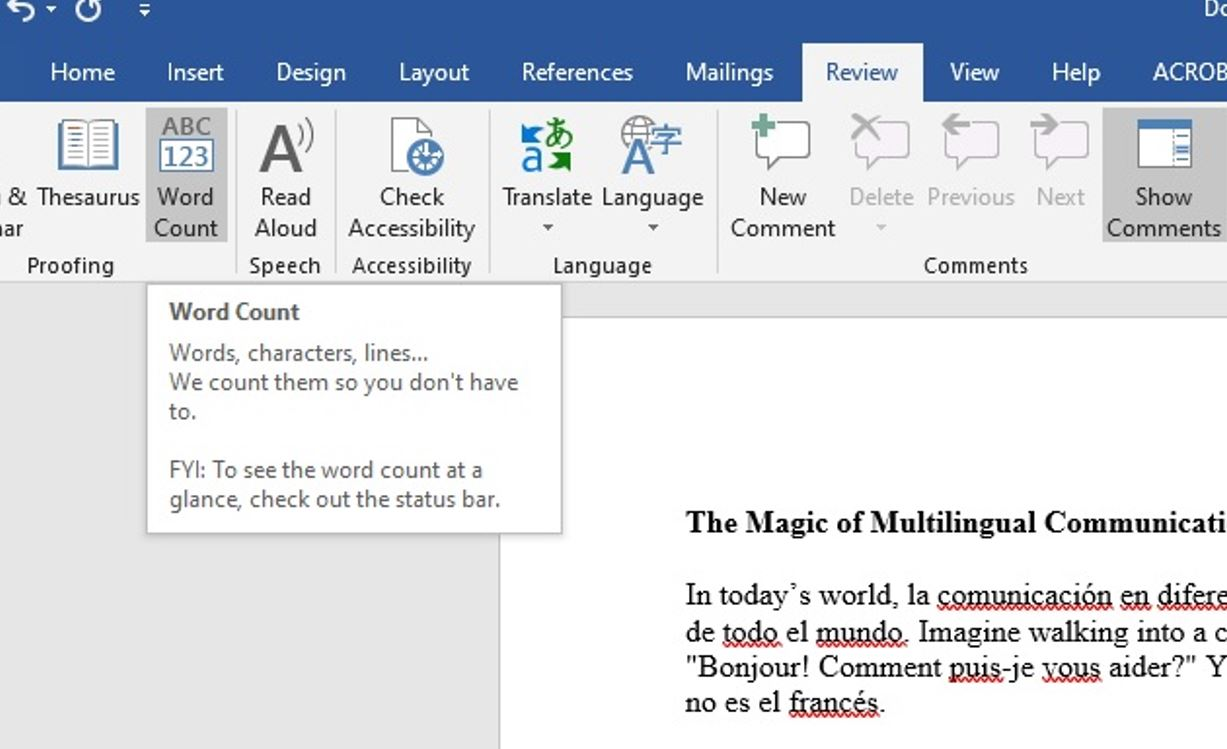
The most comprehensive way to check character count in Word is through the Word Count dialog box.
On Windows:
- Open your document in Microsoft Word.
- Click the Review tab in the ribbon.
- Click Word Count in the Proofing group.
- A dialog box appears showing pages, words, characters (no spaces), characters (with spaces), paragraphs, and lines.
- Click Close when finished.
On Mac:
- Open your document in Microsoft Word.
- Click the Tools menu in the top menu bar (not the Review tab — on Mac, Word Count is in Tools).
- Select Word Count.
- The same dialog box appears with the same statistics.
Counting a specific section: Highlight any portion of text before opening the Word Count dialog. The dialog will show counts for the selected text only rather than the whole document. This is useful for checking the character count of a single paragraph, a specific field, or a section with its own limit.
Including or excluding footnotes and endnotes: At the bottom of the Word Count dialog, a checkbox lets you include or exclude text boxes, footnotes, and endnotes from the count. Leave it unchecked if you want to count only the body text.
Method 2: The status bar
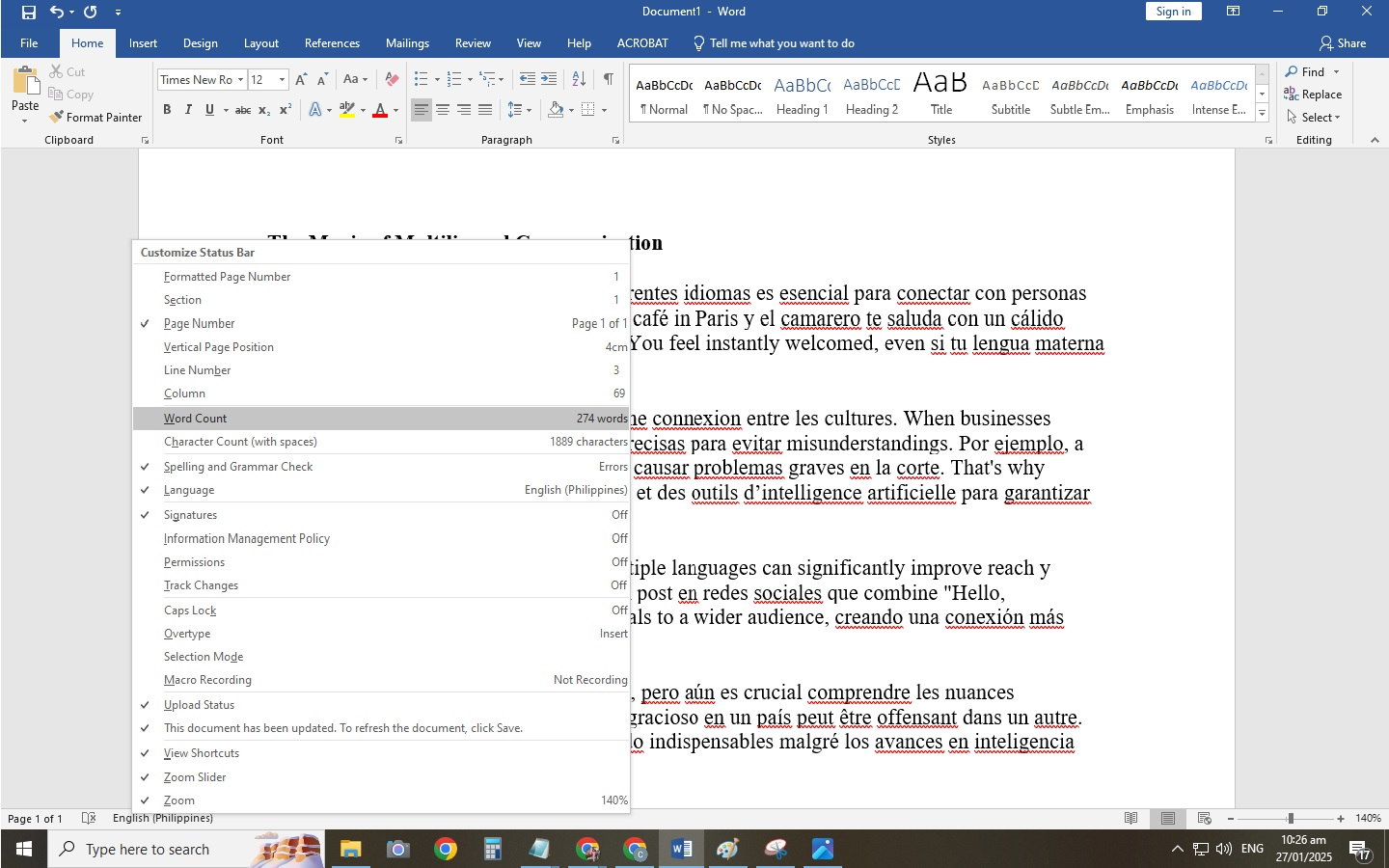
For a quick live count without opening a dialog, use Word's status bar — the bar that runs along the bottom of the document window.
- Right-click anywhere on the status bar at the bottom of the Word window.
- From the menu that appears, check Word Count (if not already shown) to display the live word count.
- You can also check Character Count (with spaces) to add that count to the status bar display.
Once enabled, the status bar shows the character count continuously as you type, updating in real time. If you select a portion of text, the status bar shows both the selection count and the total document count — for example, "523/4,821" indicating 523 characters selected out of 4,821 total.
Method 3: Keyboard shortcuts
The fastest way to open the Word Count dialog without navigating the ribbon:
Windows: Press Ctrl + Shift + G
Mac: Press Command + Shift + G — note that this shortcut opens the Word Count dialog on most Mac configurations; if it does not respond, use Tools → Word Count instead.
For Windows users, this shortcut works whether or not text is selected: with text selected it counts the selection; without a selection it counts the full document.
Method 4: Mobile and Word Online
Word mobile (iOS and Android):
- Open your document in the Word mobile app.
- Tap the More Options icon (three dots) in the top-right corner.
- Select Review from the menu.
- Tap Word Count.
The mobile version shows the same statistics as desktop, including characters with and without spaces.
Word Online (browser-based):
- Open your document in Word for the web.
- Click the Review tab.
- Click Word Count.
Note that Word Online's character count function has some limitations compared to the desktop version: it does not offer the option to include or exclude footnotes and endnotes, and the statistics may differ slightly from desktop in complex documents with embedded objects.
Platform character limits quick reference
When preparing content in Word for posting to social media or other character-limited systems, this reference covers the most commonly used limits as of 2025–2026:
| Platform | Content type | Character limit |
|---|---|---|
| Twitter/X | Standard post | 280 |
| Twitter/X | Premium post | 25,000 |
| Caption | 2,200 (125 visible before "more") | |
| Bio | 150 | |
| Post | 3,000 | |
| Article | 120,000+ | |
| TikTok | Caption | 4,000 |
| Post | 63,206 (optimal ~40–80) | |
| YouTube | Title | 100 |
| YouTube | Description | 5,000 |
| SMS (standard) | Message | 160 |
| Google title tag (SEO) | Page title | 50–60 |
| Google meta description | Meta description | 150–160 |
Sources: lettercounter.org social media character limits 2026; typecount.com platform guide.
Note that Twitter/X counts all URLs as 23 characters regardless of their actual length, due to the platform's t.co URL shortener. Most other platforms count the full URL length.
Character count in translation and localization
Character count takes on additional importance in professional translation work. Several specific contexts make it critical:
Per-character pricing for Asian languages. For Chinese, Japanese, and Korean (CJK) translation, standard pricing is per character (not per word) because these languages do not use spaces between words, making word count unreliable as a billing metric. A document quoted at "per Chinese character" requires an accurate character count from the source document to calculate cost correctly.
Text expansion. When English is translated into other languages, the target text is almost always longer. European languages typically expand 15–30% over English; German can expand up to 35%. This means a UI button label with a 12-character English version may need 16–18 characters in its German equivalent, requiring either a longer button or a revised translation. Checking character count during translation review is standard practice in localization quality assurance.
Subtitle and caption constraints. Professional subtitling standards typically allow 37–42 characters per line and define a character-per-second (CPS) reading speed limit — usually 17 CPS for adults, lower for children's content. A translated subtitle that is character-accurate to the English original will still fail QA if the CPS rate is exceeded.
Software string localization. Application strings (menu items, button labels, error messages, tooltips) have hard display constraints defined by the UI layout. Translators working on software localization are typically given maximum character limits per string. Checking character count in Word or a localization environment is part of the QA workflow on every string.
For translation projects where character count is a billing or quality factor, the Tomedes AI Word Counter provides character count analysis alongside word count, making it straightforward to prepare accurate project briefs. For more information on professional translation services, see Tomedes translation services.
Advanced methods: VBA and third-party tools
Setting a character limit with VBA
Microsoft Word does not have a built-in "character limit" feature, it will let you type indefinitely. For users who need Word to enforce a specific character limit (for example, a form field that must not exceed 280 characters), Visual Basic for Applications (VBA) can be used to create a macro that monitors the character count and alerts the user when a threshold is reached.
A basic approach: open the VBA editor in Word (Alt+F11 on Windows, Option+F11 on Mac), insert a new module, and write an event handler tied to the Document_ContentControlOnChange event or a manual macro triggered by a keyboard shortcut. The macro reads the current character count via ActiveDocument.Characters.Count and displays a message or applies formatting when the count exceeds the target.
For most standard use cases (writing to a character limit for a form, social media, or submission), it is more practical to use an online character counter or enable the status bar count in Word rather than building a VBA macro.
Third-party character counter tools
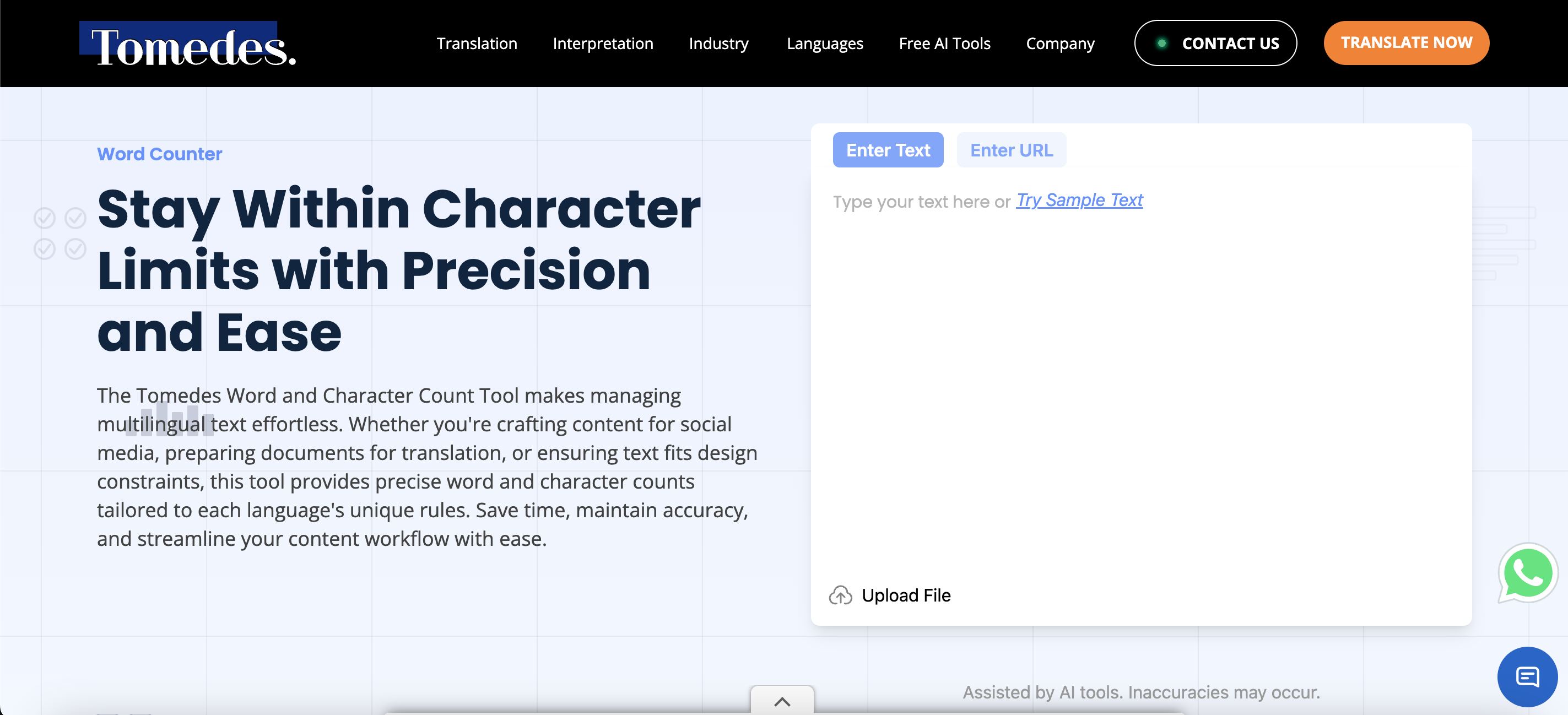
For character counts outside of Word (web content, code, database fields), several free online tools provide instant character counting:
- Tomedes AI Word Counter — counts words, characters with and without spaces, sentences, paragraphs, and reading time; supports multiple file types and is translation-workflow ready.
- Word processors with live counts (Google Docs, Notion, and others) show character count in the document statistics panel.
- Dedicated online character counters allow pasting text directly for instant platform-specific limit checking.
Frequently asked questions
Q: How do I check character count in Word?
A: Click the Review tab, then Word Count. A dialog box appears showing characters with spaces and characters without spaces, alongside word count, page count, and paragraph count. Alternatively, right-click the status bar at the bottom of the Word window and enable Character Count (with spaces) for a live running count.
Q: What is the keyboard shortcut for character count in Word?
A: On Windows, press Ctrl + Shift + G to open the Word Count dialog directly. On Mac, press Command + Shift + G, or use Tools → Word Count from the top menu bar.
Q: What is the difference between "characters with spaces" and "characters without spaces"?
A: Characters with spaces counts every character including blank spaces between words, the count most social media platforms and content systems use. Characters without spaces excludes spaces, the count used in most academic submission systems and for CJK (Chinese, Japanese, Korean) translation billing. For social media work, use the "with spaces" figure. For translation billing in Asian language pairs, confirm with the client which count applies.
Q: Can I check the character count of just part of a document?
A: Yes. Highlight the text you want to count, then open the Word Count dialog via Review → Word Count or the keyboard shortcut. The dialog will show statistics for the selected text only, not the full document.
Q: Can Word enforce a character limit?
A: Not natively. Word will not stop you from exceeding a character limit. For simple monitoring, enable the status bar character count for a live running total. For enforced limits in form fields or structured documents, a VBA macro using ActiveDocument.Characters.Count can display a warning when the count exceeds a defined threshold.
Q: Does Word Online show character count?
A: Yes, but with limitations. In Word for the web, click Review → Word Count to see character statistics. Word Online does not offer the option to include or exclude footnotes and endnotes from the count, and its statistics may differ from the desktop version for complex documents.

Written by Clarriza Heruela
Clarriza Mae Heruela graduated from the University of the Philippines Mindanao with a Bachelor of Arts degree in English, majoring in Creative Writing. Her experience from growing up in a multilingually diverse household has influenced her career and writing style. She is still exploring her writing path and is always on the lookout for interesting topics that pique her interest.
Share:

Post your Comment